

VPN connections (virtual private networks) are wonderful. I use one to connect to work several times per week. I can do all sorts of handy things: surf the network, grab files, print to my office. But one annoyance has been bugging me for a good while now, and I’ve just been putting up with it. Seemingly at random moments, the VPN connection box would just pop up for no reason.
I finally got tired of clicking the cancel button, and decided to figure out just what was causing this problem. Turns, out that Internet Explorer was the culprit, even though I only use Firefox.
VPN Popping up and Internet Explorer
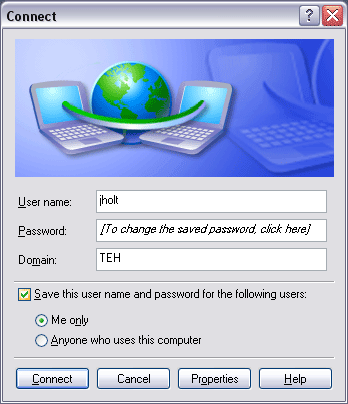 Like I said, even though I don’t use Internet Explorer, it was still causing the VPN connection box to pop up. Internet Explorer was considering the VPN connection as a default connection. It’s no wonder that this was giving me trouble since IE is also so tightly weaved into the operating system. It also explains why I was seeing this even though I only use Firefox.
 To keep the vpn connection box from popping up, all you have to do is open up Internet Explorer, click Tool > Options and then click on the Connections tab.
On the Connections tab, select the VPN connection listed under “Dial-up and VPN Connections” and click the remove button. Yeah, that screen is from Internet Explorer 6. If you’re using IE7 (you poor thing!) I imagine the process would be similar. Just find the Options window and look for connections setting.
Thanks!! This didn’t use to happen to me, but has been for a few weeks now. Very irritating…
Thank you for posting this, I ran into this problem on a secondary laptop used for streaming movies and doing remote work.
Instant fix to my woes.
I did this, and it canceled my connection with my university entirely. ??? What should I do? I want the box to stop popping up, but I need the connection to my library’s wireless.
hummmmmmmmmmmmmmmmmm